A-B Copilot — Documentation
What A-B Copilot is overview
A-B Copilot is a Windows desktop application built specifically for controls engineers, technicians, and system integrators, spanning beginners to seasoned professionals. It reads an exported PLC project file, shows the project's structure, draws its ladder logic, and lets the engineer ask questions about that logic in plain English. It is built for understanding legacy or undocumented code: explaining what a routine does, tracing where a tag is used, writing controls narratives, troubleshooting, and drafting new logic.
A-B Copilot is read-only with respect to the PLC. It never connects to a controller, never goes online, and never downloads or modifies a program. It works purely on exported project files on the engineer's own computer.
The application is a single native Windows executable (abcopilot.exe). Its interface renders in an embedded Microsoft WebView2 view. There is no installer service, no background agent, and no cloud component operated by the vendor.
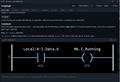
A-B Copilot Layout: How to Use It (With Examples)
Supports programs, routines, tags, Add-On Instructions (AOIs), User-Defined Types (UDTs), and I/O modules.
Which PLC platforms and file types are supported overview
A-B Copilot reads three families of exported project files:
- Rockwell Studio 5000 / Logix —
.L5Xexport files. Supports programs, routines, tags, Add-On Instructions (AOIs), User-Defined Types (UDTs), and I/O modules. - Rockwell RSLogix 500 / SLC / MicroLogix — text or ASCII exports, typically
.SLCor.TXT. Supports ladder files, addresses, and symbol/description companion documents (.EASCSV exports, and.SY5/.SY6fixed-width symbol files) which are merged in as an address legend when present. - Rockwell Micro800 / Connected Components Workbench (CCW) —
.isaxmlor.annexexports, including ISaGRAF text ladder.
You export the file from the vendor tool (Studio 5000, RSLogix 500, or CCW) and open that export in A-B Copilot. A-B Copilot does not read native project files such as .ACD or .RSS; export to one of the supported formats first.
What you need to run A-B Copilot install
- Windows 10 or Windows 11, 64-bit. A-B Copilot is a 64-bit application and will not run on 32-bit Windows.
- Microsoft Edge WebView2 Runtime. This ships with Windows 11 and current Windows 10, and the A-B Copilot installer adds it if it is missing. Without it the application cannot start.
- A license — either a trial or a permanent license, issued for your specific machine.
- An Anthropic API key, which you supply. The AI features call the Anthropic API directly from your computer using your key, billed to your own Anthropic account.
- An internet connection for the AI features only. Opening a project, browsing routines, drawing ladder, and searching all work offline. Asking questions requires internet, because the request goes to the Anthropic API.
The program folder install
The installer places these files, by default under C:\Program Files\A-B Copilot\:
abcopilot.exe               the application
web\                        the user interface
    index.html
    app.js
    ladder.js
    styles.css
    activation.html
wwwroot\instructions\       instruction reference catalog (JSON)
Everything in the program folder is read-only in normal use. A-B Copilot never writes your license, settings, or chats here. Those live in your own user profile, which is what allows the application to run correctly for a standard user account without administrator rights.
If the web\ folder is missing or incomplete, the window opens but cannot load its interface. Reinstall to restore it.
Where A-B Copilot stores your data install
All of your data lives in your Windows user profile, not in the program folder:
%APPDATA%\ABCopilot\
    license.lic                 your trial or permanent license
    abcopilot.config.json       your Anthropic API key and model
    chats.db                    your saved conversations

%LOCALAPPDATA%\ABCopilot\
    WebView2\                   browser cache used by the interface
Paste either path into the Explorer address bar to open it. Nothing here is sent anywhere; it is all local to your computer.
To move to a new computer, you will need a license re-issued for that machine's Machine ID, because a license is bound to the machine it was issued for. Your chats.db can be copied across if you want your saved conversations to come with you.
Uninstalling removes the program folder. Your %APPDATA%\ABCopilot\ and %LOCALAPPDATA%\ABCopilot\ folders are left in place so that reinstalling keeps your license, settings, and chats. Delete them by hand if you want a completely clean removal.
Setting your Anthropic API key and model install
A-B Copilot reads abcopilot.config.json from %APPDATA%\ABCopilot\:
{
  "api_key": "sk-ant-...",
  "model": "claude-sonnet-4-6"
}
There are two ways to create it:
- Through the activation screen. This is the normal route. Enter your key and press Save & Continue, and the file is written for you in the right place.
- By hand. Create the file in a text editor and save it in
%APPDATA%\ABCopilot\.
If the file is missing or has no api_key, A-B Copilot opens the activation screen so you can enter one. If the model field is empty or absent, a sensible default is used.
Get an API key at console.anthropic.com. The key is stored only on your computer and is never transmitted anywhere except to Anthropic's API when you ask a question. It is billed to your own Anthropic account; A-B Copilot's vendor never sees it and never bills for API usage.
Activation and the Machine ID licensing
Every A-B Copilot license is bound to one computer, identified by a Machine ID _ a short code such as 7F3K-9Q2M-XR4T-8N5P. The Machine ID is derived from your hardware. It contains no personal information and is not a serial number you can choose.
When A-B Copilot starts without a valid license, or without an API key, it opens an activation screen instead of the main interface. That screen shows:
- Your Machine ID, with a Copy button.
- Load License… a file picker. Choose the
.licfile you were issued; A-B Copilot verifies it and, if valid, stores it in%APPDATA%\ABCopilot\. - Anthropic API key and Model fields.
- A link to console.anthropic.com, which opens in your normal browser.
To get a license: create an account on the A-B Copilot website, supply the Machine ID shown on the activation screen, and you are issued a .lic file for that machine. Load it on the activation screen, enter your API key, press Save & Continue, then restart A-B Copilot. On restart it opens normally.
A license issued for one Machine ID will not work on a different computer. If you replace or substantially change your hardware, your Machine ID may change and you will need a license re-issued.
Trial licenses licensing
A trial license grants full functionality for a limited period, typically 7 days, on one machine. Nothing is reduced during a trial: every feature works exactly as it does with a permanent license.
While a trial is active, the welcome message on the main screen shows how much time remains, for example: "You're on a free trial — 5 days left. Purchase a license to unlock A-B Copilot permanently." The line turns red in the final two days. A permanent license shows no such message.
When a trial expires, A-B Copilot shows the activation screen so you can load a permanent license. Your saved chats, API key, and settings are not deleted.
Permanent licenses licensing
A permanent license has no expiry date and never stops working on the machine it was issued for. It is verified only by its digital signature and its Machine ID binding.
Because a permanent license carries no date, it is unaffected by your system clock. There is no countdown, no trial banner, and no periodic re-check. A-B Copilot never contacts any vendor server to validate it. Verification happens entirely on your computer, offline.
A permanent license is bound to one Machine ID, exactly like a trial. Moving to a new computer requires a license issued for the new machine's ID.
Privacy: what leaves your computer privacy
A-B Copilot prioritizes your privacy with zero background tracking. It contains no telemetry, no usage tracking, no license check-in, and no vendor server connection of any kind. Licensing is verified locally, offline.
The only outbound network traffic A-B Copilot makes is to Anthropic's API (api.anthropic.com), and only when you ask a question. That request contains your question and the relevant project context needed to answer it, for example the rungs of the routine you are asking about, retrieved from your export file. It is sent using your own Anthropic API key and is governed by your agreement with Anthropic.
Your PLC export files are read from disk and are never uploaded anywhere by A-B Copilot as files. Your API key stays in your own user profile. Your chat history stays in a local database on your computer. If you never ask a question, A-B Copilot makes no network connections at all.
Export a project usage
Watch how to export your project for Studio 5000, RSLogix 500, or Micro800.
Export Tutorials: Studio 5000
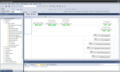
Rockwell Studio 5000 / Logix - Export Project [ .L5X ]
Supports programs, routines, tags, Add-On Instructions (AOIs), User-Defined Types (UDTs), and I/O modules.
Export Tutorials: RSLogix 500
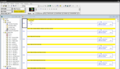
Rockwell RSLogix 500 / SLC / MicroLogix - Export Project [ .SLC or .TXT]
Supports ladder files, addresses, and symbol/description companion documents (.EAS CSV exports, and .SY5/.SY6 fixed-width symbol files)
Export Tutorials: Micro800
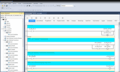
Rockwell Micro800 - Export Project [ .isaxml & .annex ]
Connected Components Workbench (CCW) .isaxml or .annex exports, including ISaGRAF text ladder.
Opening a project usage
Use the Open menu and choose the platform that matches your export: Studio 5000, RSLogix 500, or Micro800. A standard Windows file dialog appears; pick your export file.
When the project opens, A-B Copilot reads it and populates:
- A summary of the project — controller, programs, routines, and counts.
- The Routines tree in the left sidebar, grouped by program.
- The Tags / symbols panel, loaded on demand with the load button.
- The project-wide search index used by Find.
Opening a project is entirely local and requires no internet. It does not consume any Anthropic API credit.
Viewing a routine and its ladder usage
Click any routine in the Routines tree. A-B Copilot draws that routine's ladder logic in the chat area, rendered rung by rung with contacts, coils, branches, and instruction blocks.
Drawing the ladder is free: it is rendered locally from the export file and does not call the AI or consume any API credit. You can browse as many routines as you like at no cost.
If a routine has no drawable ladder! it is empty, contains only NOPs, or is written in Structured Text or Function Block rather than ladder. A-B Copilot says so instead of drawing an empty diagram.
The Auto-analyze checkbox usage
Next to the Routines heading in the left sidebar is an Auto-analyze checkbox. It controls whether clicking a routine also asks the AI to describe it.
- Unchecked (the default). Clicking a routine only draws its ladder. Nothing is sent to the AI, and no API credit is used. A Describe this routine button appears beneath the ladder; press it when you actually want an explanation.
- Checked. Clicking a routine draws the ladder and immediately asks the AI for a full description.
The default is off deliberately: long routines cost real money to analyse, and you often only want to look at the ladder or ask about a couple of specific rungs. Leaving it off puts you in control of when you spend API credit.
The setting is remembered between sessions.
Asking questions usage
Type into the box at the bottom and press Enter (Shift+Enter for a new line). You can ask about the open project, a routine, a tag, or ask A-B Copilot to draft new logic.
A-B Copilot answers by reading the real project. It calls internal tools to fetch routines, tags, AOIs, UDTs, modules, and an instruction reference, then answers from what it actually found rather than from memory. Answers can include a drawn ladder diagram, tables, and step-by-step explanation.
Questions about "this routine" or specific rung numbers are automatically understood to mean the routine currently displayed. If the rungs you ask about do not exist in that routine, A-B Copilot tells you plainly rather than answering about a different routine.
Asking a question requires internet and uses your Anthropic API key.
How rungs are numbered usage
Rung numbers in A-B Copilot are 0-based: the first rung of a routine is rung 0, matching the numbering used by Rockwell's own tools.
"Rung 20" means the rung labelled 20 in the ladder view, not the twentieth rung counted from one. The number shown beside each rung in the ladder view is its real rung number taken from the export file, so it matches what you see in Studio 5000, RSLogix 500, or CCW.
Because rung numbers come from the export rather than from counting rows on screen, the numbering stays correct even when a routine contains empty or non-drawable rungs. This can produce a visible gap. For example rung 21 followed by rung 23, where a skipped rung sits. The gap is correct: the missing number belongs to a rung that has no ladder to draw.
Neutral text and drafted logic usage
Neutral text is the plain-text form of ladder logic — the same logic you see drawn as rungs, written as a line of text:
XIC(MasterStart)XIO(EStop)OTE(RunLight);Whenever A-B Copilot shows or drafts logic, it produces neutral text and draws it as a ladder diagram above. The text block is what you copy; the diagram is what you read.
Whether that text can be put back into your PLC software depends on the platform, and the three differ:
- Studio 5000 / Logix — yes. Neutral text is Rockwell's own ASCII representation of Logix ladder. You can copy a rung from A-B Copilot and paste it directly into a routine in the Logix Designer ladder editor, and the rungs are created. Every tag the logic references must already exist in the project, or Studio 5000 will object when you paste or verify. Always verify the routine afterwards.
- RSLogix 500 / SLC / MicroLogix — no. RSLogix 500 has no equivalent paste-in for ASCII rungs. Logic that A-B Copilot drafts for these platforms is a reference for you to enter by hand in the RSLogix editor.
- Micro800 / CCW — no. Connected Components Workbench has no equivalent paste-in either. Treat drafted logic as a reference and enter it in the CCW editor.
For all three platforms, A-B Copilot reads exports and produces text. It cannot write to your project file, and it never connects to a controller.
Review drafted logic before you use it. A-B Copilot drafts logic to save you typing and to suggest an approach; it does not know your machine, your interlocks, your safety requirements, or your site standards. You remain the engineer of record. Check every address, interlock, and edge case, test in a safe environment, and never download untested logic to a running machine.
Find: searching the whole project usage
Find searches every routine in the open project for a tag, address, or instruction, and lists every place it appears: program, routine, rung number, and the rung's logic.
This is a cross-reference: use it to answer "where is this tag written?", "what uses this timer?", or "where is this instruction used?". You can search loosely (matches anything containing the term) or exactly (whole token only).
Find runs entirely on your computer against the index built when the project was opened. It requires no internet and uses no API credit.
Tags and symbols usage
The Tags / symbols panel in the left sidebar lists the project's tags or addresses. Press load to populate it, and filter by typing a substring.
For Studio 5000 projects this lists controller and program tags with their data types. For RSLogix 500 projects it lists addresses together with any symbols and descriptions found in the companion documentation files (.EAS, .SY5, .SY6) that sit alongside the export. For Micro800 projects it lists the declared variables.
Loading tags is local and free.
Chats: saving and reopening usage
Conversations are saved automatically to a local database on your computer, at %APPDATA%\ABCopilot\chats.db. Nothing is stored on any server.
Each saved chat holds the conversation and the path of the project file that was open. Reopening a saved chat restores the messages and reopens that project from its path, so the routine tree and summary come back. The project file itself is not copied into the database, only its location, so the database stays small.
If the project file has been moved, renamed, or deleted since the chat was saved, A-B Copilot restores the messages and tells you the project file could not be found. Re-open the project from its new location to continue working with it.
You can start a new chat, switch between saved chats, and delete chats you no longer need.
Switching projects while an answer is being written usage
You can open a different project while A-B Copilot is still working on an answer. The answer stays attached to the chat and project it was asked in.
If you switch away before the answer arrives, it is saved into its own chat rather than appearing in the one you moved to. Returning to the original chat shows the answer waiting there. An answer from one project can never appear in another project's chat.
Costs: what uses your API credit usage
A-B Copilot charges nothing for API usage. All AI calls go directly from your computer to Anthropic on your own key and are billed to your Anthropic account.
Free — no API usage at all: opening a project, browsing the routine tree, drawing ladder for any routine, loading tags and symbols, running Find, browsing and reopening saved chats.
Uses API credit: asking a question, pressing Describe this routine, and clicking a routine while Auto-analyze is checked.
The Auto-analyze checkbox is off by default so that browsing is free and you only spend credit when you deliberately ask for an explanation. Asking about two specific rungs costs far less than asking for a full analysis of a 200-rung routine.
Troubleshooting: "This copy needs a license" troubleshooting
A-B Copilot shows the activation screen with your Machine ID when it cannot find a valid license. Common causes:
- No license has been loaded yet. Use the Load License… button on the activation screen and choose the
.licfile you were issued. It is verified and stored for you; you do not need to copy it anywhere by hand. - The license was issued for a different Machine ID. Licenses are bound to one computer. Compare the Machine ID on the activation screen against the one your license was issued for.
- Your hardware changed. Replacing a motherboard, network adapter, or system drive can change the Machine ID. Request a re-issued license.
- The file was altered. Any edit to the license text, including the expiry date, breaks its signature. Use the file exactly as issued.
After loading a license, restart A-B Copilot.
Troubleshooting: "Your trial period has expired" troubleshooting
Your trial has reached its end date, or your system clock was set backwards while the trial was running.
The trial expiry is fixed at issue and cannot be extended by changing the file or the clock. To continue using A-B Copilot, obtain a permanent license for your Machine ID and load it on the activation screen, then restart.
Your saved chats, settings, and API key are untouched by trial expiry. They are all still there when you activate a permanent license.
If your trial appears to have expired early, check that your computer's clock and time zone are correct.
Troubleshooting: the application will not start troubleshooting
If nothing appears when you launch A-B Copilot, or Windows reports error 0xC0000135:
- The WebView2 Runtime is missing. A-B Copilot renders its interface with Microsoft Edge WebView2. It is present on Windows 11 and current Windows 10, and the installer adds it when needed, but on a machine where it was removed or blocked, install the free "Evergreen WebView2 Runtime" from Microsoft and try again. This is the most common cause.
- The installation is incomplete. The
web\folder must be present in the program folder alongsideabcopilot.exe. Reinstall to restore it. - 32-bit Windows. A-B Copilot is 64-bit and cannot run on a 32-bit installation of Windows.
Troubleshooting: "request failed" when asking a question troubleshooting
This means the request to the Anthropic API did not complete. A-B Copilot's local features — opening projects, drawing ladder, Find — are unaffected. Causes, most common first:
- No internet, or a firewall/proxy blocking
api.anthropic.com. Openhttps://api.anthropic.comin a browser on the same machine. If it does not load, the machine cannot reach the API and no setting in A-B Copilot will help. - A missing or invalid API key. Check the key at console.anthropic.com and re-enter it on the activation screen, or in
%APPDATA%\ABCopilot\abcopilot.config.json. - No credit on your Anthropic account. API usage is billed to your own account; requests fail once it is exhausted.
- A very large request. Analysing an extremely long routine sends a lot of text. Ask about specific rungs rather than the whole routine, or start a new chat to shed accumulated context.
Troubleshooting: answers seem to be about the wrong routine troubleshooting
Questions about "this routine" or bare rung numbers refer to the routine currently displayed. If an answer looks like it belongs to a different routine, click the routine you mean in the Routines tree first, this makes it the current routine, then ask again.
Naming the routine explicitly in your question also removes any ambiguity, for example: "describe rungs 4 and 5 in Process_Routine / R03_Actions".
Starting a new chat clears accumulated context and is the fastest way to get a clean answer when a long conversation has covered many different routines.